
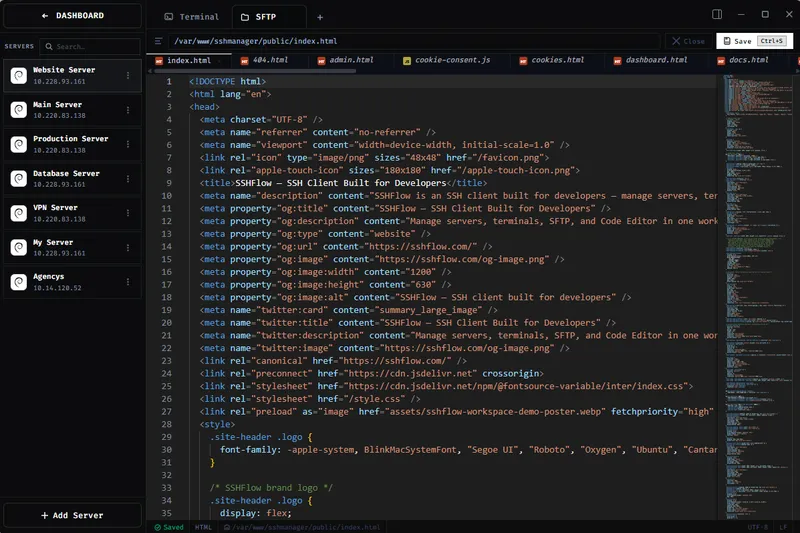
SSHFlow is a local-first SSH client for developers that turns each remote server into its own workspace containing a multi-tab terminal, an SFTP file browser, and a Monaco code editor, all connected over standard SSH.
What is SSHFlow?
SSHFlow is a desktop SSH client that groups a terminal, SFTP file browser, and code editor into a per-server workspace. It reads your existing SSH config and keys, connects over standard SSH with no server-side agent, and lets you edit remote files directly. The current release is v1.1.8 for Windows 10/11 (64-bit); macOS and Linux versions are not yet built.
Key Features
- Per-server workspaces — each server gets its own workspace with its own open tabs, layout, and tools; switching servers switches context instead of juggling terminal tabs.
- Multi-tab terminal — keep logs, deployments, and commands in separate tabs connected to the same server, run tasks asynchronously, and switch without losing your place.
- Project grouping — organize servers by project or environment, separate production from staging, and open projects in their own window.
- SFTP browser — drag and drop files and folders, browse remote directories, and open files directly in the built-in editor without a separate app.
- Monaco code editor — edit remote files over the same SSH connection with syntax highlighting and autocomplete, save changes straight back to the server, and detect external changes automatically. Files can also be opened in VS Code, Zed, or Neovim.
- Local-first security — SSH keys and credentials are stored using the operating system's native credential storage and stay on your machine by default.
- No server-side agent — nothing needs to be installed or kept running on the server; SSHFlow works with existing SSH infrastructure.
- Encrypted sync files — export your SSHFlow configuration as a password-protected encrypted file to move your setup between machines.
Who is it for?
- Developers managing multiple servers: keep production, staging, and development servers in separate workspaces and switch between them without losing terminal tabs or file browsing state.
- System administrators and DevOps engineers: run deployment commands, tail logs, and edit configuration files from one workspace per server.
- Backend and full-stack developers editing remote code: open remote files from SFTP directly in the built-in Monaco editor or jump to VS Code, Zed, or Neovim, avoiding manual download-upload cycles.
- Teams moving between machines: export an encrypted sync file to replicate server groupings and settings on another computer.
What can you do with SSHFlow?
- Manage a fleet of servers: group servers by project or environment, open each project in its own window, and keep production and staging contexts separated.
- Edit remote files in place: browse SFTP, open a file in the Monaco editor, make changes, and save them back to the server over the same connection.
- Run parallel terminal tasks: open multiple terminal tabs per server for logs, deployments, and one-off commands, running tasks asynchronously.
- Transfer files without another app: drag and drop files or folders into the SFTP browser and manage remote file trees inside the same workspace.
How does SSHFlow work?
SSHFlow uses your existing SSH configuration and keys to connect to servers. Each server becomes a workspace where you can open terminal tabs, browse files over SFTP, and edit remote files; your SSH keys and credentials are stored in the operating system's native credential store, and no agent is installed on the server. You can download it for Windows, and for macOS and Linux you can join a waitlist.
FAQ
Is SSHFlow free?
SSHFlow offers a 17-day free trial with no account or credit card required to download and start working. The site has a plans page, so continued use may require a paid plan; specific prices are not listed on the page.
Which platforms does SSHFlow support?
SSHFlow v1.1.8 is available for Windows 10/11 (64-bit). The page lists macOS and Linux at the top, but the download section indicates those builds are not yet available and you can join a waitlist to be notified when they are ready.
Does SSHFlow require anything installed on my servers?
No. SSHFlow connects over standard SSH and does not need a server-side agent or proprietary protocol. If you can connect to a server with SSH, SSHFlow can work with it.
Can I edit remote files without downloading them first?
Yes. SSHFlow's built-in Monaco code editor opens files directly from the SFTP browser over the same SSH connection, with syntax highlighting and autocomplete; changes are written straight back to the server, and external changes are detected automatically. You can also open files in VS Code, Zed, or Neovim.
How do I move my SSHFlow setup to another computer?
SSHFlow can export your configuration as an encrypted sync file protected by a password you choose, so you can move server groupings, open tabs, and settings between machines.


