
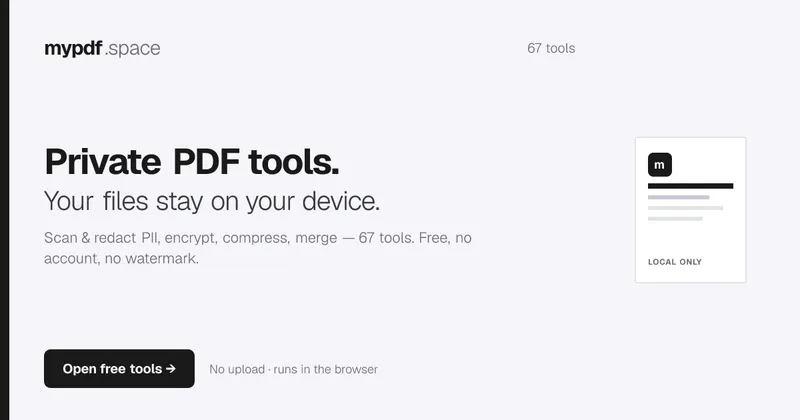
mypdf.space is a browser-based PDF workshop of 67 tools — merge, split, compress, redact, OCR, sign, encrypt and convert — that processes files inside the browser tab rather than uploading them to a server.
What is mypdf.space?
mypdf.space is a private PDF utility suite that runs entirely client-side in a web browser tab. You feed it a PDF (or a .docx, .xlsx, .pptx, image or plain-text file) and it returns the edited document — merged, compressed, redacted, OCR-searchable, encrypted or converted — as a direct download, with no account, no watermark and no upload step. The tool set is organised into eight groups totalling 67 tools: Organize (14), Convert (16), Security (11), Annotate (7), Edit (6), Extract (5), Optimize (4) and View (4). It can be installed as an app so the tools keep working offline; the site states a tip jar is the whole business model.
What makes mypdf.space stand out?
- Local-only processing — every tool runs inside the browser tab; the site invites you to open the network panel while working or disconnect from the internet entirely, and note that no request carries your file.
- Confidential Send pipeline — a single pass that scans and redacts PII, strips metadata, watermarks and encrypts a document, or prepares an "Email Ready" version, and can batch several PDFs into one zip.
- Privacy scanner and auto-redact — detects SSN, email, phone and card-number patterns, reports what it found without changing the file (scanner), or permanently blacks out matches on the affected pages.
- Target-size compression — shrink for email attachments or hit an exact portal limit (100 KB, 20 KB through 10 MB), keeping selectable text by default or max-shrinking with a searchable overlay.
- Browser OCR via Tesseract — makes scanned pages searchable in English, Hindi, Spanish, German or French, with language packs downloaded on first use.
- Office conversion both ways — Word (.docx), Excel (.xlsx) and PowerPoint (.pptx) to PDF, plus PDF to Word (.docx) and PDF to Excel (.xlsx); the site notes Office layout is best-effort and complex features may simplify.
- Deep Clean and Hidden Content Auditor — strip metadata, drop embedded files, clear OpenAction/JS markers and flatten forms; the auditor flags off-page text, tiny or near-white text, attachments and form residue. The site labels Deep Clean "forensic-lite", not an NSA-grade wipe.
- Structured exports — PDF to JSON gives per-page text with positions and font sizes; PDF to Markdown reconstructs headings; PDF to ZIP splits into single-page PDFs.
Who should use mypdf.space?
- Job seekers: compress a resume to a 1 MB or 500 KB portal cap, deep-clean it, add an optional company watermark, and zip it with a cover letter and a privacy receipt using the Job Application Packet tool.
- Legal, HR and admin staff: apply Bates numbering (BATES-0001, BATES-0002 and onward) to every page and permanently redact sensitive regions, with matched pages rasterized so covered text is destroyed.
- Researchers and analysts: run OCR on scanned sources, then extract text, images or structured JSON, or compare two PDF versions page by page.
- Anyone handling confidential documents: scan for hidden text, PII and metadata before sharing, then encrypt with a password or remove protection from a file you own.
What can you do with mypdf.space?
- Send a sensitive document safely: run Confidential Send to redact PII, strip metadata, add a watermark and encrypt in one pass, then share the resulting PDF.
- Beat an upload limit: name a target size such as 100 KB for a portal cap, or compress for an email attachment, and keep the text selectable.
- Turn a scan into a working document: OCR the pages so Ctrl+F and applicant tracking systems can read them, then export to .docx for editing.
- Prepare print or booklet output: reorder pages, apply N-up (2-up, 4-up, 6-up), build a booklet imposition, resize to A4/Letter/Legal and convert to grayscale.
How does mypdf.space work?
The site routes you by problem rather than by tool name: pick what you need to do (prepare a sensitive PDF, hit a size limit, fix a file that will not upload or convert) or what is wrong with your PDF (too large, contains personal data, not searchable, needs a signature), and it sends you to the matching local tool. Processing happens in the tab; the export downloads directly. Installing it as an app lets you reopen the tools offline.
Pricing
mypdf.space is free, with no account, no subscription tier and no document counter. The site describes a tip jar as the entire business model, reasoning that there is no per-file server cost to recover because your device does the work.
Alternatives
iLovePDF, Smallpdf, Adobe Acrobat. mypdf.space publishes its own comparison page against these three, including what each of them does better.
FAQ
Do my PDFs get uploaded to a server?
No. Every tool runs inside your browser tab, and the site suggests opening the browser network panel while you work or disconnecting from the internet — the tools keep functioning, because no request carries your file.
Is it free, and does it add a watermark?
It is free with no account, no tier and no document counter, funded by an optional tip jar. No watermark is added to exports; the only watermark that appears is one you add yourself with the watermark tool.
Is redaction permanent?
Yes. Drawing a black box rasterizes the matched pages so the covered text is destroyed rather than merely hidden behind a shape. Whiteout, by contrast, simply covers a region in white and stays editable later.
Which languages does OCR support?
Browser OCR runs on Tesseract and currently handles English, Hindi, Spanish, German and French. Language packs download the first time you use that language, so the initial run needs a network connection.
Can I use the tools offline?
Yes, once installed as an app. Processing never relied on mypdf.space servers, so losing the network changes nothing about how the tools behave — only first-time OCR language packs and the initial install need connectivity.


