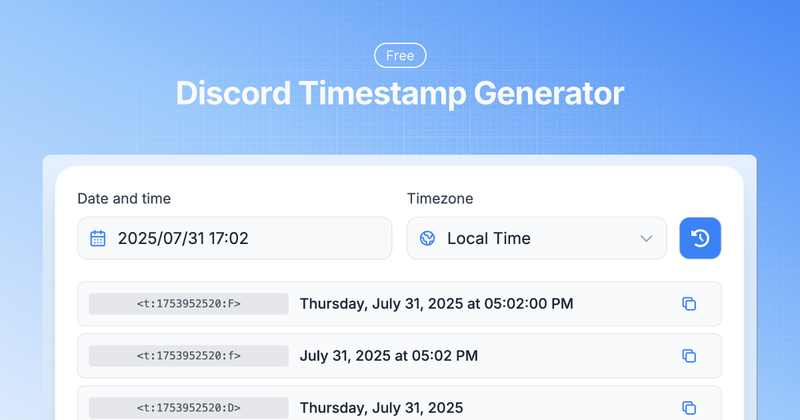
The Discord Timestamp Generator is a free web tool that converts user-selected dates and times into Discord-formatted Unix timestamps, which automatically display in each viewer's local timezone. It eliminates confusion when scheduling events or coordinating across time zones by generating codes like <t:1783185720:F> that Discord renders as a localized date-time string.
What is the Discord Timestamp Generator?
The Discord Timestamp Generator is a browser-based tool that takes a date and time (past or future) as input and outputs a short text snippet in the format <t:unix_timestamp:format_letter>. Users copy this snippet into Discord messages, and the platform displays it in each recipient's local timezone. The tool is self-contained with no backend; it runs entirely in the browser and requires no registration.
Key Features
- Multiple format options — Choose from 7 Discord timestamp styles:
F(full date/time),f(short date/time),D(long date),d(short date),t(short time),T(long time with seconds), andR(relative time like '33 seconds ago'). - One-click copy — Click any generated timestamp preview to copy the code to your clipboard; no manual selection needed.
- Real-time preview — As you adjust the date, time, or format, the preview updates instantly showing how each variant will appear to Discord users.
- Timezone auto-conversion — Timestamps always use UTC internally; Discord shows them in each user's system timezone, automatically handling daylight saving time.
- Easy date selection — A date picker and time input allow selection of any date from 1970 to beyond 2038, supporting both past and future timestamps.
- Quick actions — One-click 'Set Current Time' button to jump to the present moment.
- Local Time and UTC toggle — View output times in either local or UTC to verify correctness.
Who is it for?
- Discord server administrators — Create accurate event schedules for global communities.
- Event organizers — Announce meetup times that automatically convert to each attendee's local time.
- Gaming community leaders — Coordinate raid times, tournaments, or streaming sessions across time zones.
- Any Discord user — Send time-sensitive messages (e.g., 'Maintenance in 2 hours') that stay relevant in all regions.
What can you do with it?
- Schedule future events — Generate a full-date timestamp (
Fformat) for a community gaming night, ensuring everyone sees the correct local time. - Reference past occurrences — Create a relative timestamp (
R) for '3 days ago' to mark when a previous event happened. - Create countdowns — Use the
Rformat to show 'in 2 hours' that updates dynamically within Discord. - Announce deadlines — Post submission cutoffs with a short date/time (
f) that viewers see in their own timezone.
How does it work?
- Select Date & Time — Use the date picker and time input to choose your desired moment. Click 'Set Current Time' for the present.
- Choose Format — Pick one of the 7 format styles. All previews update simultaneously.
- Copy & Paste — Click any preview to copy the
<t:...>code. Paste it directly into a Discord chat or announcement.
FAQ
Is the Discord Timestamp Generator free?
Yes, it is completely free with no limitations, registration, or account required. You can generate unlimited timestamps.
What timestamp formats does Discord support?
Discord supports 7 formats: F (full date/time), f (short date/time), D (long date), d (short date), t (short time), T (long time with seconds), and R (relative time). The generator provides all of them.
Can I create timestamps for past dates?
Yes, you can select any date after Unix epoch (January 1, 1970). The tool handles both past and future dates.
How accurate are the timezone conversions?
The generator uses UTC for the underlying Unix timestamp. Discord then converts it to each user's local time based on their system settings, which automatically accounts for daylight saving time. The conversion is exact.
What if the timestamp doesn't work in Discord?
Ensure you copy the complete <t:...> code including brackets and colons. The format must be exactly like <t:1234567890:F>. If it still fails, update your Discord client to the latest version.