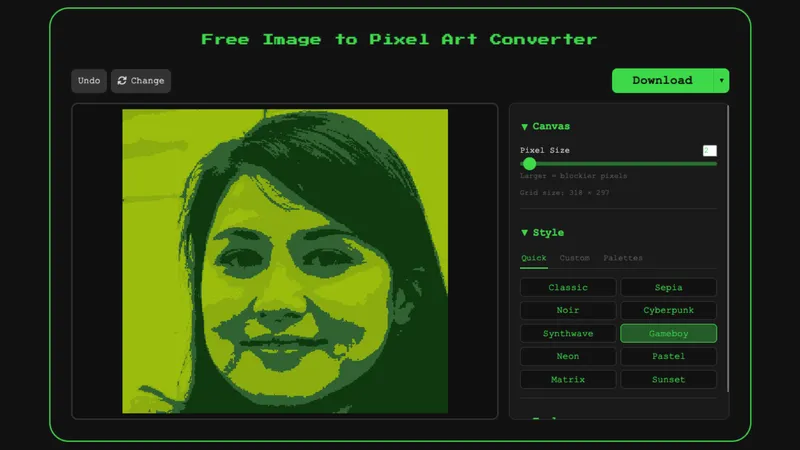
Image2Pixel is a free, browser-based converter that turns ordinary photos into 8-bit pixel art, letting you set pixel density, apply a retro console or film palette, and export the result as a high-resolution PNG.
What is Image2Pixel?
Image2Pixel is an online image-to-pixel-art converter that runs in the browser. You drop in a JPG, PNG, GIF or WebP photo, set a grid size that decides how coarse the pixel blocks become, apply a retro color palette, and download the finished artwork as a high-resolution PNG. The upload zone on the page shows a 5 MB file limit, while the FAQ also lists GIF among supported inputs alongside JPG, PNG and WebP. The page states that processing happens locally in the browser rather than on a server, and it does not name a company or individual behind the tool.
What makes Image2Pixel stand out?
- Grid-size control — a single pixel-density setting changes the size of each output block, so the same photo can be rendered as a barely-pixelated image or a blocky sprite-scale graphic.
- Eight retro palettes — Sepia, Game Boy green, Synthwave pink-purple, Cyberpunk blue, Neon, Pastel, Matrix green and Sunset orange-pink presets are selectable before export.
- Palette color limiter — a Palette List panel exposes a "Number of colors" control with an "All" option, letting you restrict the output palette to fewer tones.
- Three export size modes — the download dialog offers Actual size, Original size and Custom size before saving the PNG.
- No account, no watermark — the page states the tool is free with no sign-up, no subscription and no watermark applied to exports.
- Gallery of preset examples — the site shows sample outputs for the Classic filter (an 8-bit farm scene), Game Boy (a green golden retriever), Sepia (a warrior sprite) and Vaporwave (a pink-purple city skyline).
- Pixel art guides — an accompanying blog covers dithering, color quantization, palette selection, 8-bit versus 16-bit versus 32-bit styles, and converting photos into Perler bead patterns.
How does Image2Pixel work?
Conversion is a four-step flow that completes without leaving the page: upload an image, tune the pixel density, pick a palette, then export. A "Processing…" state appears between steps, followed by a confirmation dialog reading "Download successful! Your pixel art is saved."
- Drag or click to upload a JPG, PNG, GIF or WebP file.
- Change the grid size to set the level of pixelation and retained detail.
- Choose a retro color filter or cap the palette color count.
- Pick an export size and download the pixel art as a PNG.
Who should use Image2Pixel?
- Indie game developers — produce 2D character sprites, tilesets and background textures from existing photos or concept art to match a retro visual style.
- Pixel artists — reduce a complex reference photo to a simplified grid layout that is easier to redraw by hand at sprite scale.
- Social and gaming profile owners — generate 8-bit avatars for Discord, Twitter or game community pages using the Game Boy, Neon or Synthwave palettes.
- Anyone obscuring image details — apply a heavy pixelation pass as a stylized mosaic over faces or sensitive areas of a photo.
What can you do with Image2Pixel?
- Retro game assets: convert a photo into an 8-bit scene such as the site's Classic-filter farm example, then export the PNG as a background or texture.
- Craft patterns: the site's own guide on Perler bead patterns pairs image conversion with grid sizing and color matching so pixelated output can be followed bead by bead.
- Nostalgia edits: apply the Game Boy green or Sepia palette to a modern photo for a handheld-console or old-film look in a single pass.
Pricing
Image2Pixel is free to use. The page states there are no hidden fees, no subscription tiers and no watermarks on exported pixel art, and that no account is required. The site does note that cookies are used for advertising and analytics.
FAQ
Is Image2Pixel free to use?
Yes. The page states the tool is 100% free with no hidden fees, no subscription limits and no watermark on exported images, and no account or sign-up is required to convert and download a picture.
Are uploaded photos stored on a server?
The page says no. Image processing is described as happening entirely inside your own browser, so files are not uploaded to or saved on external servers, which matters if you are converting personal photos or client material.
What file formats and size limits apply?
The upload zone accepts PNG, JPG, JPEG and WebP files up to 5 MB, while the FAQ additionally lists GIF as supported input. Exports are always delivered as a high-resolution PNG rather than the original format.
Can I control how many colors the pixel art uses?
Yes. A Palette List panel includes a "Number of colors" setting with an "All" option, so you can keep the full color range or reduce the image to a limited palette before choosing an export size and downloading.
What export sizes are available?
The download dialog offers Actual size, Original size and Custom size options, so the finished pixel art can be saved at the native pixel grid or scaled up before the PNG is written to disk.