
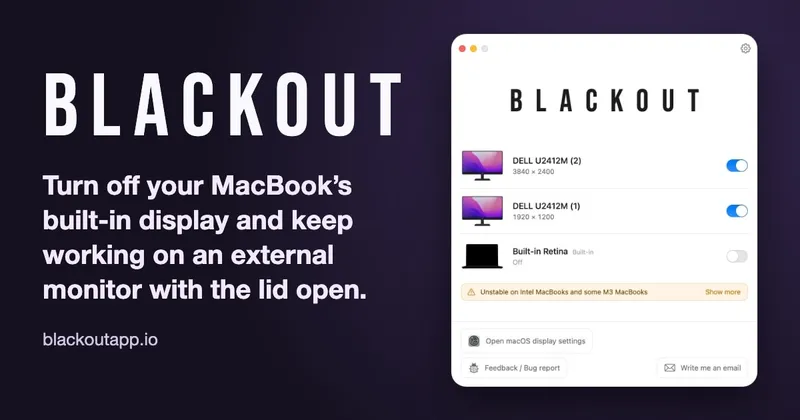
Blackout is a macOS utility that turns off a MacBook's built-in Retina display while an external monitor is connected, so macOS stops treating the internal screen as an active desktop.
What is Blackout?"
Blackout is a small Mac app (version 0.3, a 1.7 MB DMG download) whose single job is to power down the internal display of a MacBook when external monitors are attached. You toggle displays from one window, and the result is visible in Apple's own System Settings, which no longer lists the built-in screen as a desktop. Unplugging monitors or quitting the app returns the machine to its normal state. It requires macOS Sequoia or later and runs on Apple Silicon (M1 through M6) and Intel MacBooks.
What makes Blackout stand out?
- Individual display switches — turn each connected display on or off from a single window rather than digging through macOS display settings.
- Lid-open operation — the MacBook's keyboard and trackpad keep working with the screen dark, so the laptop can be used as a closed-screen desktop replacement.
- Automatic reset to default — if something goes wrong, the app resets all screens to their default on state on its own.
- Monitor unplug detection — when a monitor cable is pulled, the app notices and acts accordingly instead of leaving the Mac in a dark-screen state.
- Touch ID keeps working — login and authentication via Touch ID still function with the display off, which the page notes is not the case with other tools.
- Menu-bar-only footprint — the app can shrink to a tiny icon in the top menu bar with no Dock icon.
- 39 languages — the interface follows the Mac's system language, including English, German, French, Japanese, Korean, Simplified and Traditional Chinese, Arabic and Hindi.
- Instant recovery — closing the app, restarting the Mac, a crash, a macOS update or an unplugged cable brings the internal display back at 80% brightness.
Who should use Blackout?
- Desk-bound MacBook users with a large external monitor: darken the laptop screen so windows and the menu bar stop spilling onto a second, unused panel.
- Developers and writers running a lid-open clamshell setup: keep the built-in keyboard and trackpad usable while only the external display shows content.
- Users who authenticate constantly: Touch ID login continues to work with the internal panel off, so unlocking the Mac is unaffected.
- People on Intel MacBooks or base M3 machines: the app still runs, but the page warns these models have a hardware bug that may prevent the internal display from turning off.
What can you do with Blackout?
- Single-monitor focus: route all windows to one external screen and remove the internal display from the desktop entirely, as reflected in System Settings.
- Presentation and screen-sharing setups: avoid mirroring or accidental window placement on a laptop panel that nobody in the room can see.
- Multi-monitor triage: switch individual displays on and off from one window while keeping the two external monitors live.
How does Blackout work?
Open the app, use the per-display switches to turn the built-in Retina panel off, and keep working on the external monitors. The change is software-based, so it is never permanent: quitting the app, restarting macOS or unplugging a cable restores the internal display at 80% brightness. Blackout is signed with a valid Apple Developer account and is distributed directly as a DMG rather than through the App Store, because Apple does not allow software that uses the Apple hardware API.
Pricing
Blackout is a one-time purchase: 9 USD, with no subscription, unlimited activations across your Macs and all updates included. A free 7-day trial download is available before buying.
FAQ
Is Blackout available on the Mac App Store?
No. The developer states that Apple does not permit software using the Apple hardware API in the App Store, so Blackout ships as a direct DMG download. It is officially signed with a valid Apple Developer account. A free 7-day trial is offered, and a license costs 9 USD at the early-bird price instead of 19 USD.
Does Touch ID still work when the MacBook screen is off?
Yes. Touch ID login and authentication continue to function with the internal display turned off, which the page highlights as a difference from other tools. The MacBook's keyboard and trackpad also remain usable with the lid open while the screen stays dark.
What happens if the app crashes or I unplug the monitor?
In every failure case — quitting the app, restarting the Mac, an app crash, a macOS update, or an unplugged monitor cable — the internal display comes back on at 80% brightness instantly. The change is purely software-based, so nothing survives a macOS restart.
Are all MacBook models supported?
The community-tested table covers Intel MacBooks from 2019 onward and Apple Silicon models from M1 through M5, plus a MacBook Neo 13-inch with A18 Pro. Intel machines and the base M3 MacBook and M3 MacBook Air have a hardware bug that might prevent turning off the internal display, and on Intel Macs the internal display still appears in System Settings.


