
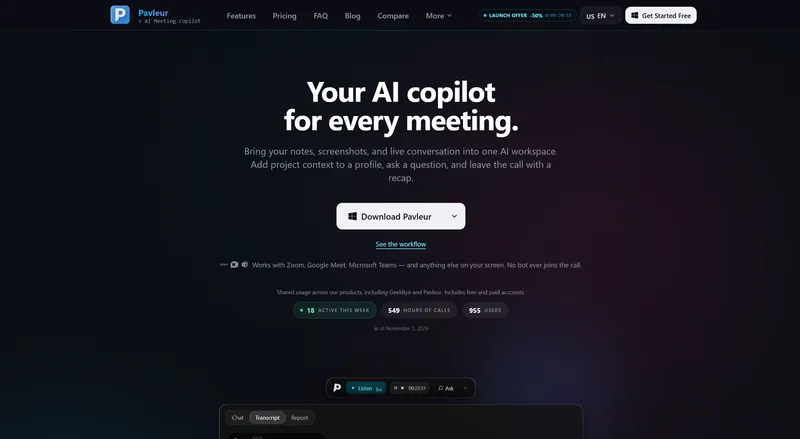
Pavleur is a desktop AI meeting copilot that transcribes a live call, answers questions against notes and screenshots you attach to a profile, and displays everything in a translucent overlay that never joins the meeting as a bot.
What is Pavleur?
Pavleur is a macOS and Windows desktop app that runs alongside any call on your screen — Zoom, Google Meet, Microsoft Teams, or another app — and produces a live transcript, in-context chat answers, and post-call recaps. Its inputs are the call audio, screenshots you capture mid-session, and documents you manually attach to a profile (exported Obsidian Markdown notes, text files, PDFs, Word documents). Profiles and transcripts are stored locally on your computer, while transcription and AI requests are processed online. The page lists a companion product, GeekBye, which shares the same account and billing backend as Pavleur.
What makes Pavleur stand out?
- No bot in the meeting — Pavleur runs locally and never joins as a participant, so there is no Pavleur entry in attendee lists and no extra guest on the customer's side.
- Screen-share protection — a content-protection setting keeps the overlay out of screen sharing; the page notes behavior depends on the operating system and capture method, and recommends testing your setup before sharing.
- Profile-based context — you build a profile from manually attached documents and select it before the call, so answers draw on that project's material.
- Screenshot questions — capture a slide, product screen, or question and choose which screenshots go to the AI.
- Overlay shortcut — hide and restore the translucent overlay with Command+B on macOS or Ctrl+B on Windows.
- Multilingual transcription — pick an available transcription language in the app; options depend on your plan and transcription service, and Free is English-only.
- Recaps, decisions, and action items — Pro adds AI-generated decisions and action items plus review of saved transcripts.
- Local storage with a stated data policy — profiles and transcripts stay on your machine, customer data is not sold or shared with advertisers, and recordings are not used to train Pavleur's own models.
Who should use Pavleur?
- Sales and customer-success reps: keep a client profile (deck, PDF, account notes) open during a call and ask for a response draft when a pricing or support question lands.
- Multilingual meeting participants: transcribe in a chosen language and ask for clarification of what a counterpart just said.
- Consultants and presenters: capture a screenshot of the slide on screen and ask for an explanation or recap while the conversation is still live.
- Candidates and interviewers: keep a lightweight notes overlay available instead of a full meeting-bot integration.
What can you do with Pavleur?
- Multilingual customer calls: surface language-support questions during the call and check an answer before speaking, as shown in the sample Acme transcript where a counterpart asks about multilingual support and data storage.
- Slide-driven demos: screenshot the slide or product screen that prompted a question and ask the AI to explain it or draft a reply.
- Post-call follow-up: on Pro, review the saved transcript and use generated decisions and action items as the basis for a recap.
How does Pavleur work?
- Attach an exported Obsidian Markdown note, text file, PDF, or Word document to a profile, then select that profile before the call starts.
- Capture screenshots of anything on screen that needs context and choose which ones to send.
- Ask questions against the live transcript and selected profile, then review the answer before using it.
Pricing
Pavleur is freemium. Free covers live transcription (English), screenshot questions, selected notes and documents in a profile, AI recaps, and app-shown usage limits with no credit card. Pro is a monthly subscription listed at $37.50 per month and adds live AI conversation assistance, additional transcription languages, AI-generated decisions and action items, saved transcript review, and manual profile attachments. Pro Lifetime is a one-time $449 purchase capped at 100 customers across Pavleur and GeekBye combined (78 taken as of the page's counter), with a founding-customer Slack channel. Screen video recording is not part of Free or Pro — it is limited to admin accounts. All payments are final and non-refundable.
Alternatives
Otter, Granola, Fireflies.
FAQ
Does Pavleur join my call as a participant?
No. Pavleur runs locally on your computer and never joins the meeting as a bot, so it does not appear in attendee lists and leaves no guest entry on the other side. It works with Zoom, Google Meet, Microsoft Teams, and anything else visible on your screen.
Will other participants see the Pavleur overlay?
A content-protection setting is designed to keep the overlay out of screen sharing, but the page states behavior depends on your operating system and capture method, and recommends testing your setup before a real call.
What languages does Pavleur support?
Free includes English transcription. Pro adds additional transcription language options selectable in the app, and the available list depends on your plan and the transcription service. Accuracy varies with language, microphone, background noise, and speakers, so important names and numbers should be reviewed.
Can I connect Obsidian or GitHub directly?
No. Automatic Obsidian vault sync and GitHub repository connections are not available in the public release; you attach an exported Obsidian Markdown note, text file, PDF, or Word document to a profile manually.
Is my call data private?
Profiles and transcripts are stored locally on your computer, and Pavleur does not sell customer data, share it with advertisers, or use recordings, transcripts, and screenshots to train its own models. Local storage does not mean offline processing: audio, selected screenshots, prompts, and relevant profile context are sent to Pavleur's backend and AI providers when you use those features.


