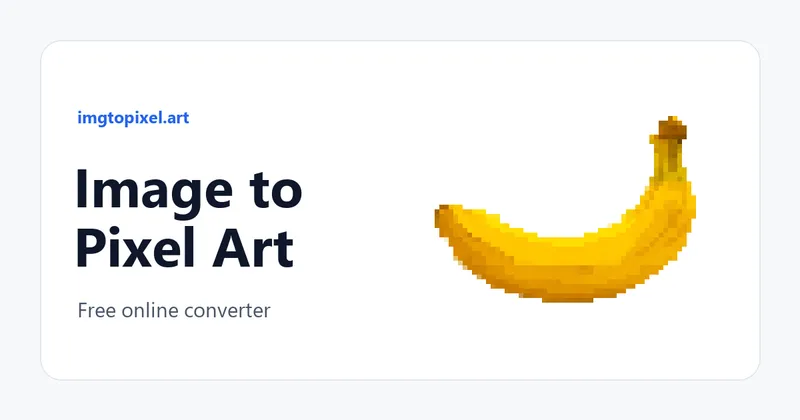
Image to Pixel Art Converter is a free, browser-based editor at imgtopixel.art that turns an uploaded PNG, JPG, or static WebP image into pixel art by resizing it onto a pixel grid, remapping colors to a chosen palette, and exporting the result as a scaled image file.
What is Image to Pixel Art Converter?
Image to Pixel Art Converter is a web tool that takes a photographic or illustrated image (PNG, JPG, or static WebP) and rebuilds it as pixel art on a grid the user defines, from 1×1 up to 512 pixels per side. Users control pixel block size, palette, color count, brightness, contrast, saturation, dithering, and sampling method, then preview the result live in the browser and download it. All processing runs on-device in the browser rather than on a server, and no account is required.
Key Features
- Fixed or free pixel sizing — set a block size for a chunky retro look, or type exact grid dimensions such as 16×16, 32×32, or 64×64, with a custom width and height range of 1 to 512 pixels.
- 17 preset palettes plus custom — includes PICO-8, Commodore 64, DawnBringer 32 and 16, Sweetie 16, AAP-64, Resurrect 64, Apollo 46, Pollen 8, Apricot, Ice Cream GB, Arq4, Hollow, Lost Century, Sunset 88, Twilight 55, plus "Keep original colors" and "From image" modes, and user-defined custom palettes.
- Palette size and color controls — a Maximum colors control (set to 16 in the default state) plus brightness, contrast, and saturation sliders for tuning the reduced-color output.
- Two color-matching modes — RGB matching for speed or LAB matching for perceptual accuracy when mapping source pixels to the target palette.
- Two sampling modes — area average for smoother downscaling or nearest neighbor for sharp, hard-edged pixelation.
- Floyd–Steinberg dithering — an optional toggle that approximates gradients within a limited palette for a classic pixel art texture.
- Grid overlay and live preview — show the pixel grid to inspect individual cells before committing, with changes reflected in the preview as sliders move.
- Scaled downloads — export in PNG, JPG, or WebP at pixel-grid size, original size, 2× original, or 4× original, with the how-to guide noting output up to 8× scale for clean edges.
- On-device processing — images are never uploaded to servers, and downloads carry no watermark.
Who should use Image to Pixel Art Converter?
- Indie game developers: convert a character sketch or reference photo into a 32×32 or 64×64 sprite base using a limited palette, then export at 4× for import into a 2D project.
- Crafters: reduce a photo to a small color count and read the grid overlay as a stitch chart for cross-stitch or Perler bead layouts.
- Social and gaming users: turn a selfie or portrait into a pixel avatar sized for Discord or other profile pictures.
- Desktop and phone customizers: convert landscapes or pet photos into retro wallpapers and export at original or 2× size.
What can you do with Image to Pixel Art Converter?
- Sprite prototyping: drop in a reference image, lock the grid to 16×16 or 32×32, pick PICO-8 or Sweetie 16, and export a starting point for icons and 2D assets.
- Craft planning: cut the palette to a handful of colors and use the visible grid to map cells to beads or stitches.
- Retro profile pictures: downsample a portrait with area-average sampling for a softer face, or nearest neighbor for harder edges.
- Stylized wallpapers: apply dithering and a DawnBringer or Commodore 64 palette to a landscape for a game-era look.
How does Image to Pixel Art Converter work?
- Choose or drag in a PNG, JPG, or static WebP image; a preview appears once it is processed.
- Set the pixel size or exact grid dimensions between 1 and 512 pixels per side.
- Adjust colors — palette, maximum colors, brightness, contrast, saturation, dithering, color distance, and sampling.
- Preview the result, optionally show the grid, then download at the chosen scale and format.
A Reset settings control returns every slider and palette choice to defaults.
Pricing
Image to Pixel Art Converter is free to use with no account, no paid tier, and no watermark on downloads. The site states there is no usage cap on how many images you convert.
FAQ
Is Image to Pixel Art Converter free?
Yes. The tool is free to use with no sign-up and no fee, and exported pixel art carries no watermark. The site states you can create as much pixel art as you like without creating an account.
Are my images uploaded to a server?
No. All conversion and color processing happens locally in your browser, so the source image and the exported pixel art are never uploaded to or stored on the site's servers.
What formats can I convert, and what do I get back?
Input accepts PNG, JPG, and static WebP images — animated WebP is not supported. Output format can be set to PNG, JPG, or WebP, and the help text describes the finished file as a sharp PNG without blurry edges.
Can I use the pixel art commercially?
Yes, provided you hold the rights to the original image and everything in it. The site does not claim ownership of your images or exports, but it notes that pixelating a copyrighted image does not by itself grant commercial usage rights.
What is the maximum output resolution?
Grid dimensions can be set from 1 to 512 pixels per side, and downloads can be scaled to pixel-grid size, original size, 2× original, or 4× original, with the step-by-step guide mentioning up to 8× scale.